
Built for organic growth. Your post on your blog, Dev.to, LinkedIn profile, Bluesky, Mastodon and X, on autopilot.
One post becomes your blog plus copies on Dev.to, your LinkedIn profile, Bluesky and more. Every copy has a way back to your site; your site publishes first.
X needs your own API keys.
In your chat
Illustrative example: in your chat, you ask your AI assistant to write 5 posts on a topic your customers ask about for your blog and schedule them for next week. It replies that 5 posts are drafted and scheduled, your blog first, then 6 platforms, and five posts appear, one for each day from Monday to Friday.
Your week, on autopilot
Illustrative example: across next week, Monday to Friday, each post is published on yoursite.com first, marked as the original, then on Dev.to, Hashnode, your LinkedIn profile, Bluesky, Mastodon and X, each copy linking back to yoursite.com.
Where your customers can find you
Illustrative example, not a real search result: a customer asks which software to choose. An AI answer summarises a comparison on yoursite.com, lists a page on yoursite.com as a source, and shows your product with a link to yoursite.com. Results depend on your content and the search engine.
Built on MCP, the open standard many AI assistants support.
Tested with Claude Code. Any assistant that supports remote MCP servers can connect.
Assistants whose docs list remote MCP support


and more
What it looks like once scatterpost is running
Every example below is illustrative, with yoursite.com standing in for your site and you as the author.
01
Found in search
Someone searches for the thing you know. Your post on your own site can be the one they land on, with the copies on Dev.to and Hashnode pointing back to it rather than competing with it.
Your own site is the original. Copies point back to it. Where it ranks is up to the search engine.
Illustrative example: a customer searches for which software to choose. Your post on yoursite.com appears as the original, alongside the copies on Dev.to and Hashnode, each marked as linking to yoursite.com. Where any page ranks is up to the search engine.
02
Ready for AI assistants
When someone asks an assistant instead of searching, clear, well-structured posts on your own site are easier for an assistant to read, and a post it can read is one it can point to.
llms.txt and structured data can help assistants read and quote your posts.
Illustrative example: a customer asks an AI assistant which software to choose. In this example, the answer draws on your post and shows a source link to a page on yoursite.com.
03
Your week, published
Monday, your assistant drafts. Tuesday, the post goes live on your site as the original. Through the rest of the week, a copy goes out to each platform you connect, on your schedule.
Every copy has a way back to yoursite.com.
Illustrative example of a week. Monday: your assistant writes a draft. Tuesday: it is published on yoursite.com as the original. Wednesday to Friday: copies go out to Dev.to, Hashnode, your LinkedIn profile, Bluesky, Mastodon and X, each linking back to yoursite.com. The Dev.to copy shows Originally published at yoursite.com.
04
Watch it add up
Each post adds another page on your site and another copy pointing home. The dashboard shows posts, platforms and clicks back to your site in one place, so you can see what worked.
One place to see what each post did, across every platform.
Illustrative example of a month, not real results: 20 posts published, 7 platforms including your own site, and 400 clicks back to your site, with a small chart of clicks by day.
Illustrative figures, not typical or real results. Yours depend on your content.
What you can ask it
One sentence in your chat, and scatterpost does the rest.
You: Write a blog post about our new features and publish it everywhere.
Assistant: Drafted: “Three features worth telling founders about”
- Published on yoursite.com first
- Dev.to, links back to your site
- Hashnode, links back to your site
- LinkedIn profile, links back to your site
- Bluesky, links back to your site
Works in Claude, Claude Code, Cursor or any MCP client
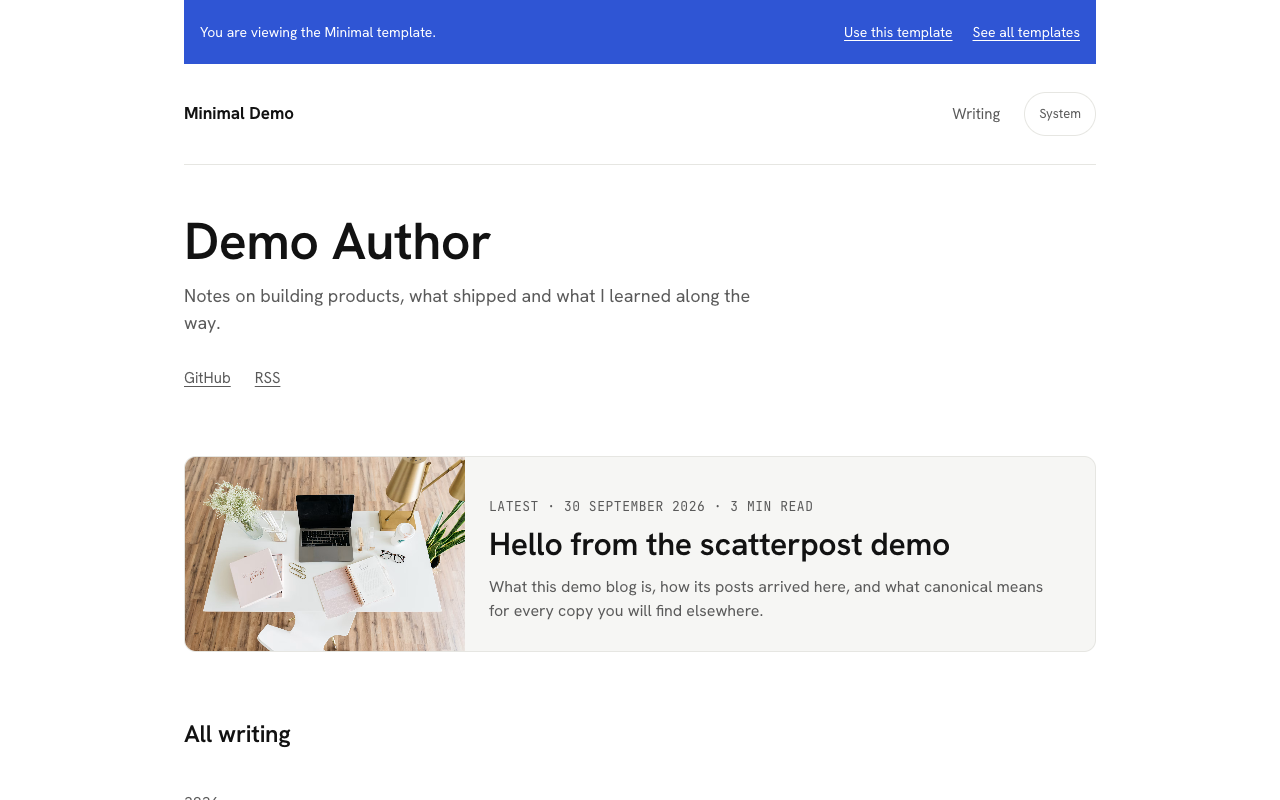
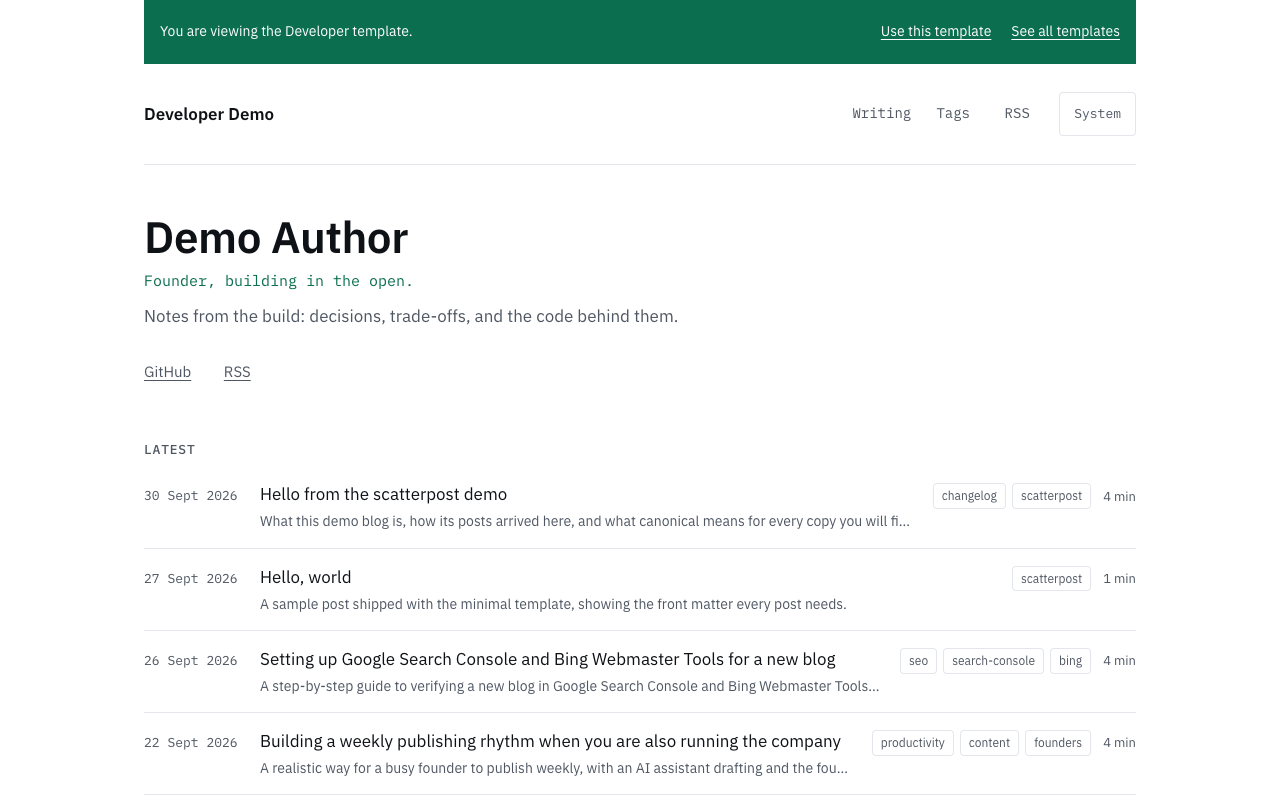
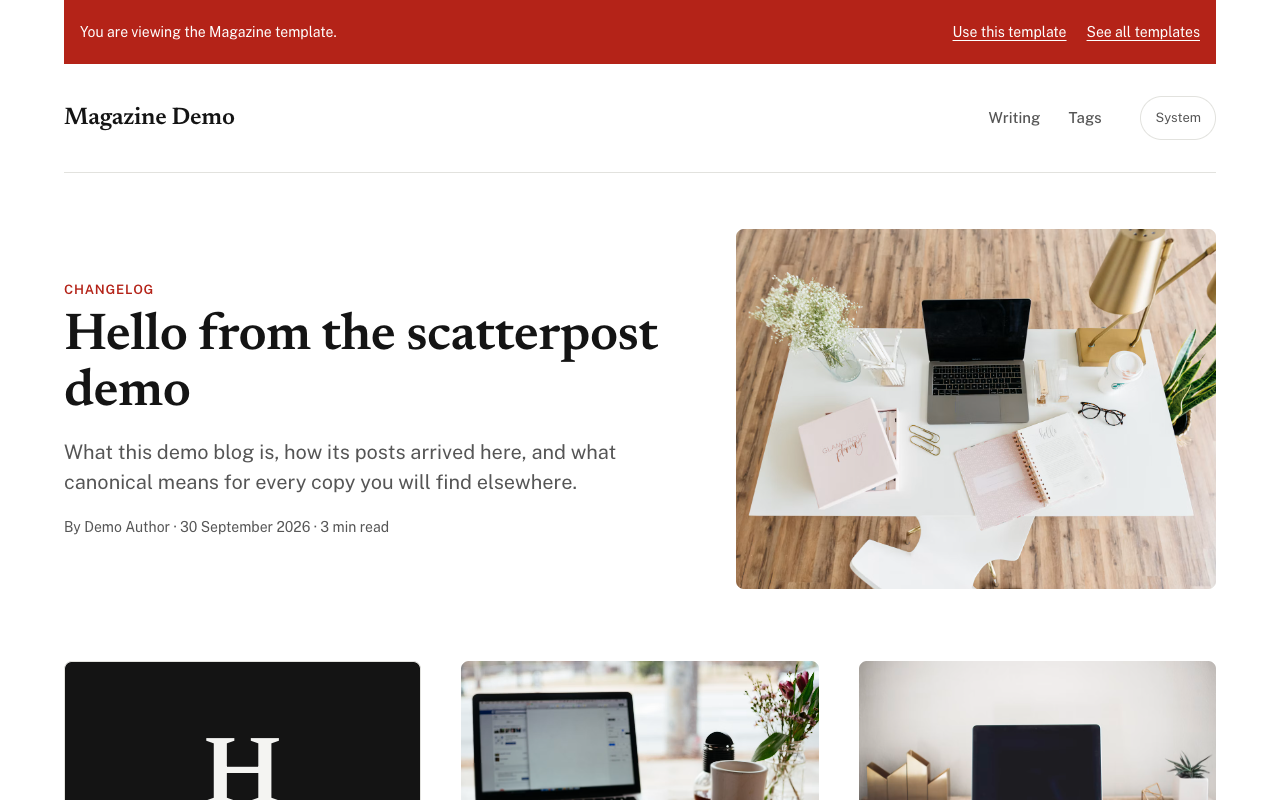
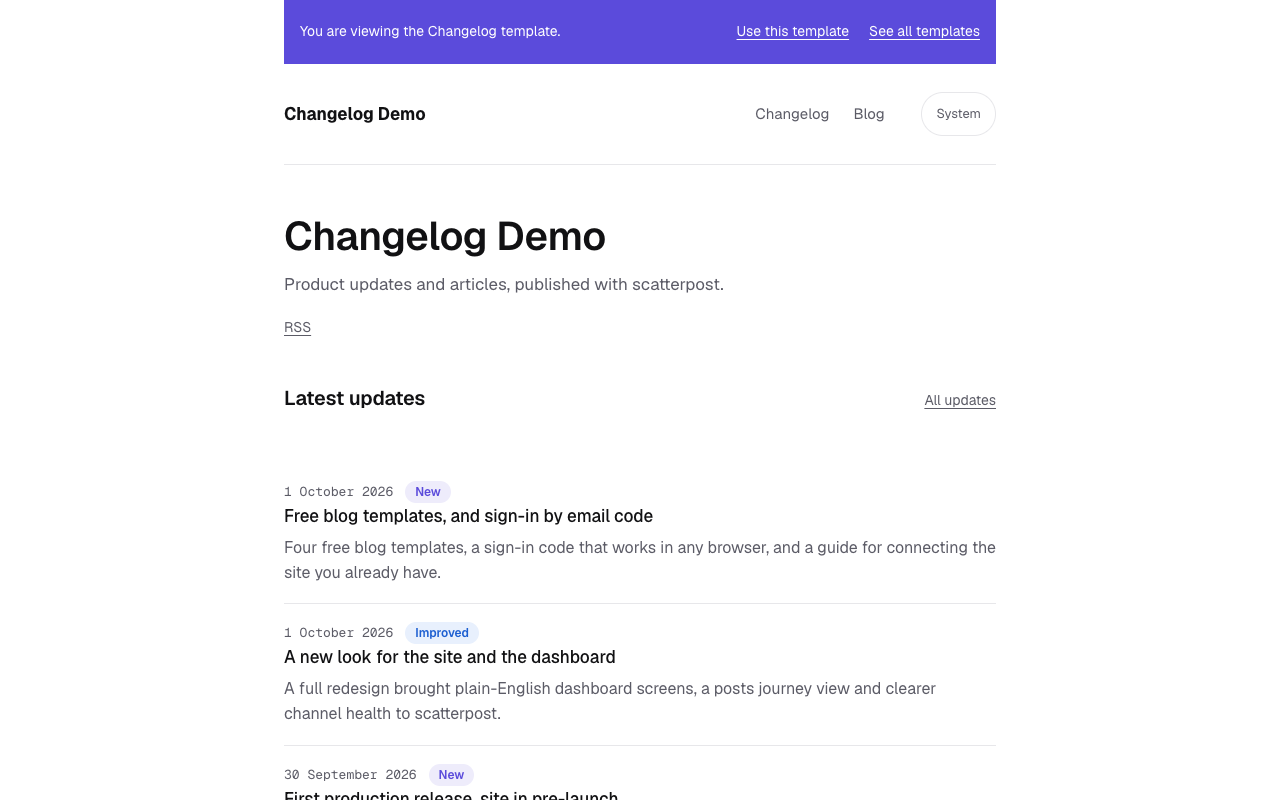
No blog yet? Start from a template
Four ready-made blogs, pre-configured for AI and search, so you skip the setup and start publishing. Pick one, deploy it to your own Vercel account, and customise anything.
Ready for your AI agent
scatterpost can publish to it from Claude, Cursor or any MCP client as soon as you paste in one secret. No webhook code to write.
Easy for AI assistants to read
Every post ships with structured data and an llms.txt file, so AI assistants can understand and quote your writing.
Set up for search
Sitemap, RSS feed, canonical links and social preview images come built in. Add a key and new posts ping IndexNow too.
Yours to own and change
Your domain, your Vercel account, MIT licence. Light and dark mode and a cookie consent banner are already done.
MCP server
Quick connect
In your AI app, sign in and click Approve. No keys to copy.
1.Copy the connector address
https://app.scatterpost.io/api/mcp/mcp
2.Add it in your AI app
- In Claude, open Customize, then Connectors.
- Click + Add, then Add custom connector.
- Name it scatterpost, paste the connector address above, and click Continue, then Add.
- Click Connect. You go to scatterpost's page "Connect Claude to scatterpost": sign in if asked and click Approve.
- Back in Claude you will see "Connected to scatterpost". Claude asks permission before each action: choose Allow once or Always allow.
On Team and Enterprise, Claude's help centre says an owner adds it once under Organization settings, then Connectors, and members click Connect.
- In ChatGPT, open your profile, then Settings, then Security and login, and switch on Developer mode.
- Open Plugins, click +, then Add custom MCP server, then Create MCP App. Name it scatterpost, paste the connector address above as the Server URL, set Authentication to OAuth, tick the box to confirm you understand, then click Create.
- In Settings, then Plugins, open scatterpost, choose Connect another account, then Sign in with scatterpost.
- On scatterpost's page "Connect ChatGPT to scatterpost", click Approve.
- Back in ChatGPT your scatterpost account shows as Primary. A banner may say not all permissions were granted: that is expected, as publishing is off unless you allow it.
- In a chat, type @, pick scatterpost, then ask, for example, "Using scatterpost, list my channels".
Needs Developer mode, which ChatGPT labels as elevated risk. Tested on the Free plan: connecting and creating drafts work. Publishing is off unless you allow it when you sign in, and has not yet been tested in ChatGPT.
Screenshots of ChatGPT, shown to explain setup. ChatGPT is a trade mark of OpenAI. scatterpost is not affiliated with OpenAI.
- Open Connected apps in Gemini and choose Custom apps.
- Under "Add a custom app link to get started", paste the connector address above, then Next.
- On "Connect this MCP server", tick the box accepting the security and privacy risks, then Connect.
- On "Link your Google Account", choose Agree and continue, then click Approve on scatterpost's page.
- Click Connect on "Save your custom app". scatterpost then appears under Custom apps.
- In a chat, type @Scatterpost and your request. Gemini asks Allow or Deny before each action.
Needs a personal Google account and you must be 18 or over; work and school accounts are not supported. Availability is set by Google.
Screenshots of Google Gemini, shown to explain setup. Gemini is a trade mark of Google LLC. scatterpost is not affiliated with Google.
- Open your app's settings for custom MCP connectors (sometimes called connectors, tools or MCP servers).
- Add a new connector and paste the connector address above.
- Sign in to scatterpost and click Approve when asked.
- Check that the scatterpost tools appear, then ask your assistant to draft a post.
Steps differ by app, and your app must support remote MCP servers with sign-in (OAuth). Tested with Claude, ChatGPT and Gemini.
Tested with Claude, ChatGPT and Gemini. Other AI apps that support remote MCP connectors with sign-in can use the same address.
Free account, no card needed.
Manual setup: Claude Code, Cursor and API keys
Copy the connector address:
Connector addresshttps://app.scatterpost.io/api/mcp/mcp
In Claude, open Customize, then Connectors.
Click + Add, then Add custom connector.
Name it scatterpost, paste the connector address above, and click Continue, then Add.
Click Connect. You go to scatterpost's page "Connect Claude to scatterpost": sign in if asked and click Approve.
Back in Claude you will see "Connected to scatterpost". Claude asks permission before each action: choose Allow once or Always allow.
On Team and Enterprise, Claude's help centre says an owner adds it once under Organization settings, then Connectors, and members click Connect.
Run this in a terminal:
Commandclaude mcp add --transport http scatterpost https://app.scatterpost.io/api/mcp/mcp
In Claude Code, type /mcp, pick scatterpost and choose Authenticate.
Sign in to scatterpost and click Approve.
Sign-in from Claude Code is new and still being tested. If Authenticate does not finish, use an API key instead (below).
Prefer a key? Create one in scatterpost under Settings, Connect your AI, Advanced, then run this with your key in place of PASTE_YOUR_KEY_HERE:
claude mcp add scatterpost -e SCATTERPOST_API_KEY=PASTE_YOUR_KEY_HERE -- npx -y @scatterpost/mcp
Create an API key in scatterpost: Settings, Connect your AI, Advanced.
Paste this into Cursor's chat, with your key in place of PASTE_YOUR_KEY_HERE:
PromptAdd this MCP server to Cursor's mcp.json: {"mcpServers":{"scatterpost":{"command":"npx","args":["-y","@scatterpost/mcp"],"env":{"SCATTERPOST_API_KEY":"PASTE_YOUR_KEY_HERE"}}}} and replace PASTE_YOUR_KEY_HERE with my scatterpost API key, then confirm the scatterpost tools are available.
Or add it to mcp.json yourself:
mcp.json{ "mcpServers": { "scatterpost": { "command": "npx", "args": [ "-y", "@scatterpost/mcp" ], "env": { "SCATTERPOST_API_KEY": "PASTE_YOUR_KEY_HERE" } } } }We have not yet tested this end to end in Cursor. If it does not connect, tell us through Settings, Feedback.
Syndication destinations
Where it publishes
Unlimited channels on Pro and Team; plans are gated on scheduled posts, not on how many you connect.
Publishes first, over a webhook your site exposes. The URL it reads back is what every cross-post points to.
 Dev.tolive
Posted through the Dev.to API with canonical_url set to your website's URL as a hint.
Posted through the Hashnode API with the republished-from field set to your website's URL.

 LinkedIn profilelive
Posted as a text update with a link back to your site when your site is connected.
Posted via the AT Protocol as a single post with the composed text and a link back, truncated at a word boundary to fit.

 Mastodonlive
Posted to your instance via the Mastodon API as a single post with the composed text and a link back, truncated at a word boundary to fit.
Posted using your own X API keys, split into a thread when the article runs long. X charges for API access on its own side; scatterpost does not add a markup.
Not available yet, planned for a future release.
LinkedIn Page: Posting to company Pages needs LinkedIn to approve scatterpost. Until then, post from your profile and reshare to your Page.
scatterpost prepares the post and checks the community's rules; you post it yourself.
Pricing
Unlimited channels on Pro and Team
No VAT is added.
- ✓1 workspace
- ✓3 connected channels
- ✓10 scheduled posts a month
2 months free on annual billing, or £19 a month
- ✓Unlimited channels and posts
- ✓Scheduling with local-time slots
- ✓Analytics
2 months free on annual billing, or £49 a month
- ✓Everything in Pro
- ✓3 seats included, then £10 a seat a month
- ✓Approval workflow
Run client work? See agency pricing
Stop pasting articles across tabs.
Connect scatterpost to your agent, publish to your own site first, and cross-post everywhere else so every copy has a way back to the original.
Get started